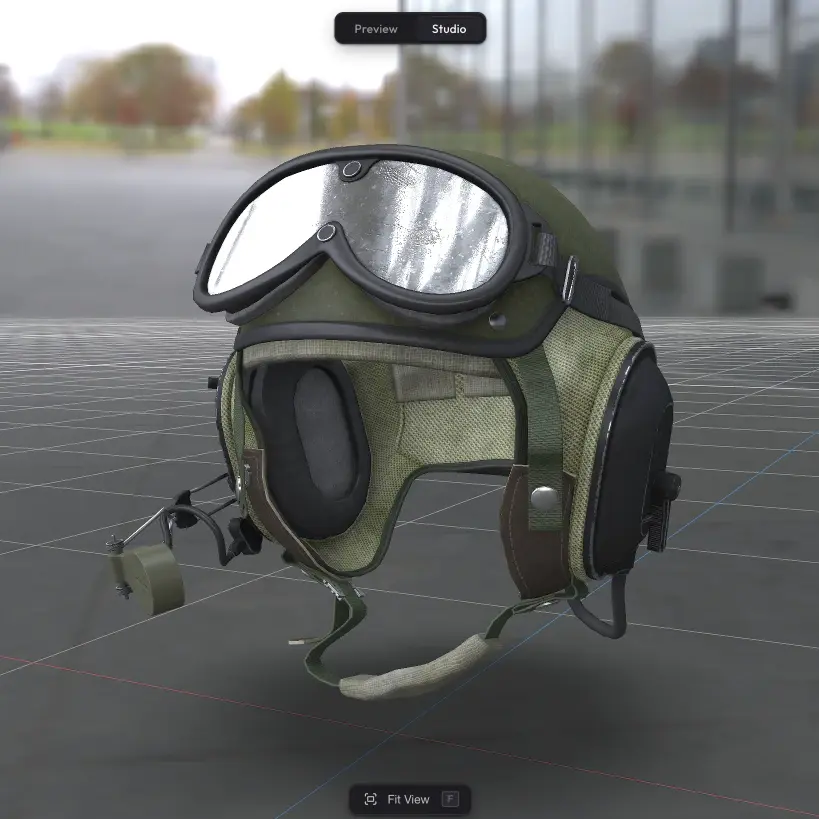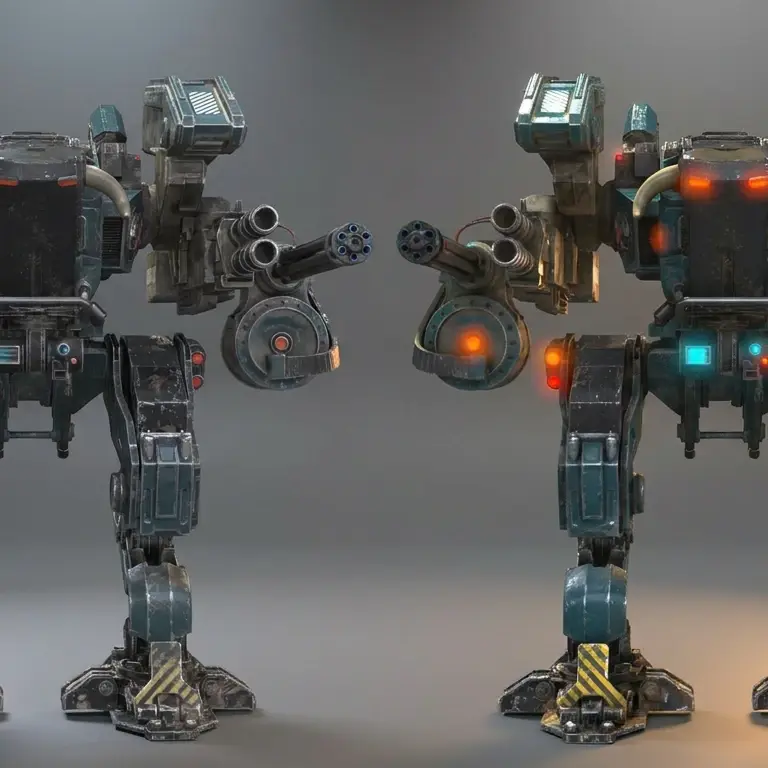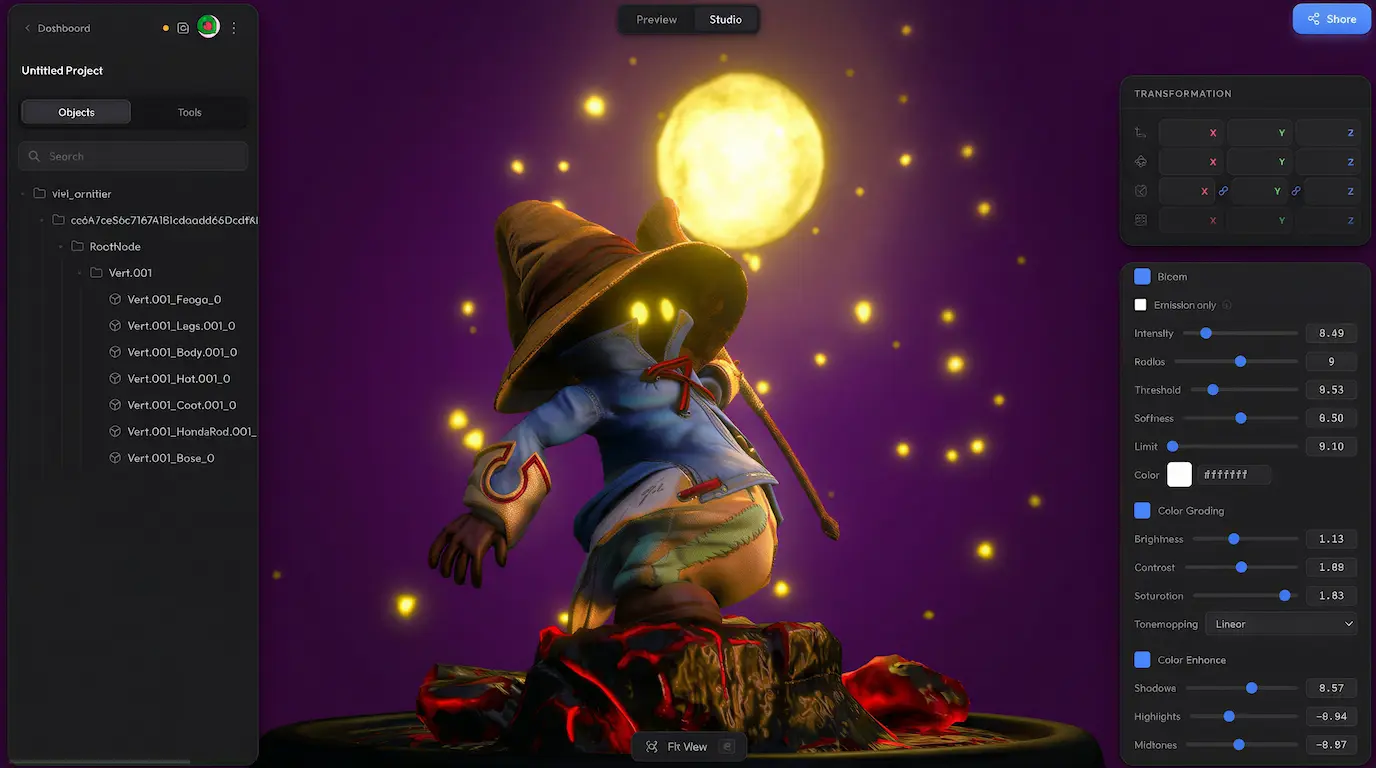
Scene Settings is the panel where you configure your whole scene — background, lighting, rendering, quality, camera defaults, shadows, and more. Controls are grouped into focused sections, and most of them have their own dedicated docs page where you can read about what's inside in detail.
Sections in the panel #
Controls are grouped into focused sections — each one covers a specific aspect of the scene, from rendering and lighting to background and shadows. Most have their own dedicated docs page where you can dig into the details.
- Scene — toggles that change what you see in the viewport: FPS counter, wireframe, texture display, and the studio grid
- Background — what is behind the model: solid colour, transparent, or HDR skybox
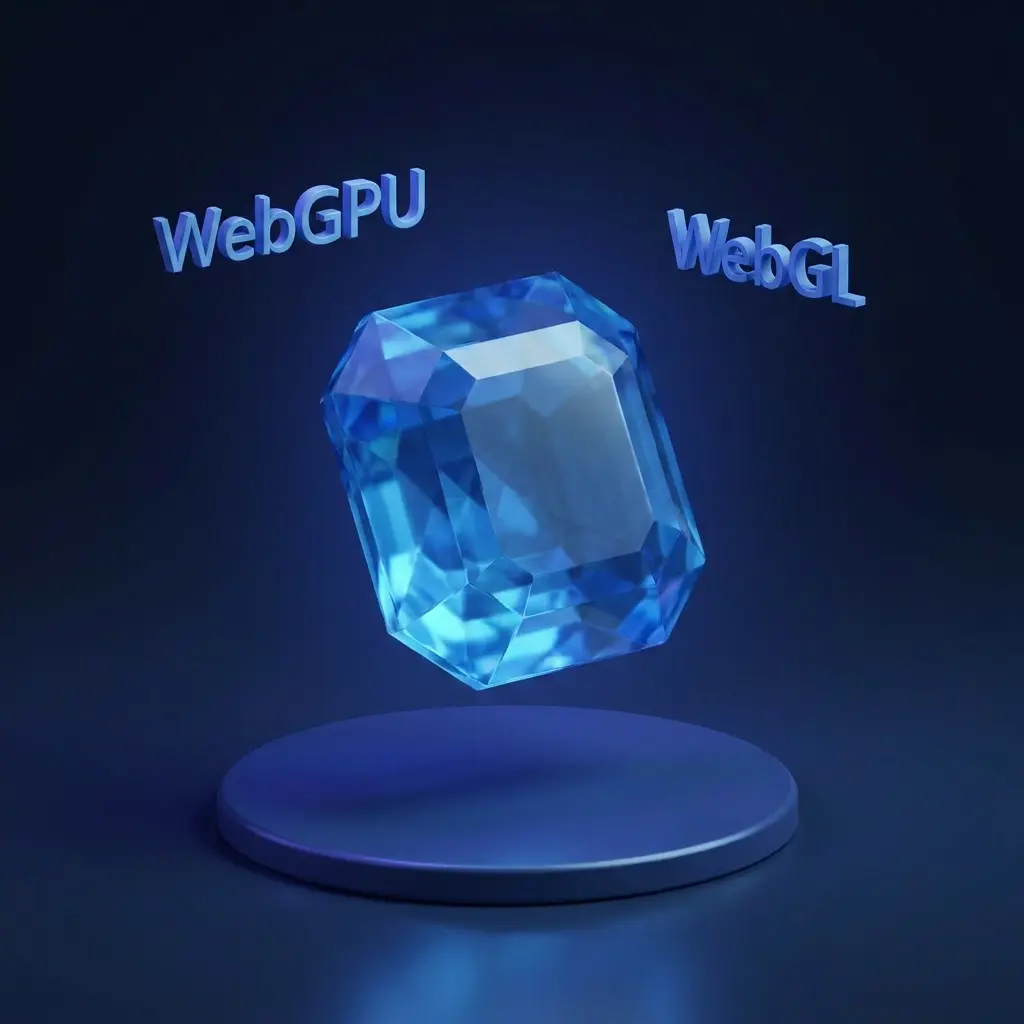
- Quality — rendering quality, performance settings, and WebGPU/WebGL pipeline choice
- Rendering — post-processing effects: ambient occlusion, anti-aliasing, bloom, color grading, vignette, and more
- Light — scene lighting controls: intensity and directional light
- Camera — settings for the scene camera: field of view, turntable, and depth of field
- Shadow Catcher — invisible ground plane that catches the shadow cast by the model
Saved with the project #
All Scene Settings are saved with the project and serialised into the share URL. When you publish or embed, viewers get the exact configuration you set in the editor — no drift between authoring and viewing. If you change anything after publishing, click Update link in Share settings to push the new state to the live URL.
Missing some settings? #
Need more scene-wide controls, additional rendering parameters, or anything else beyond what is here? Drop us a line at hello@trice3d.com or join our Discord and tell us what you need.