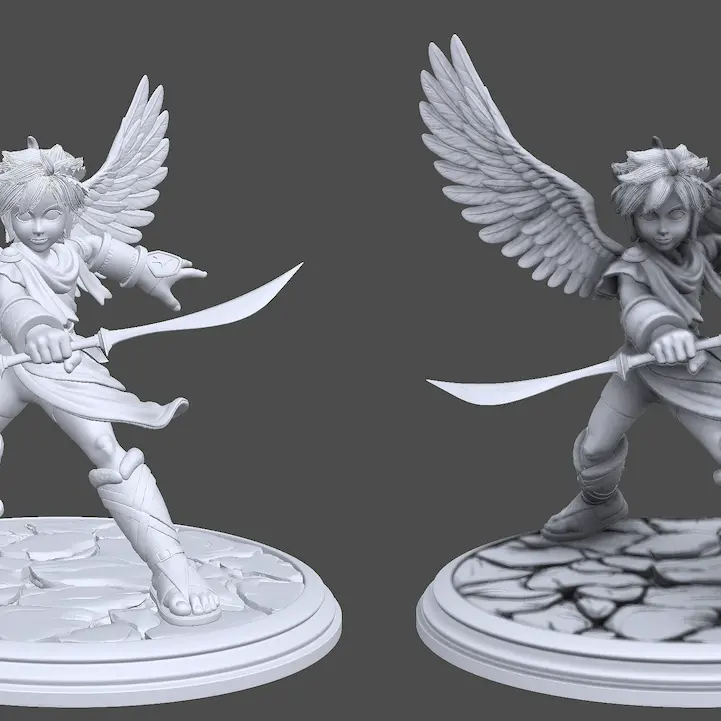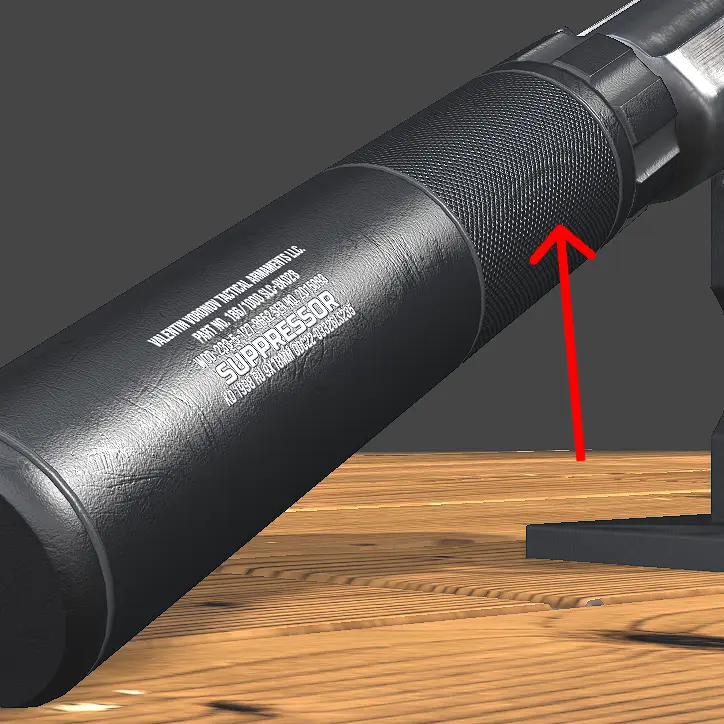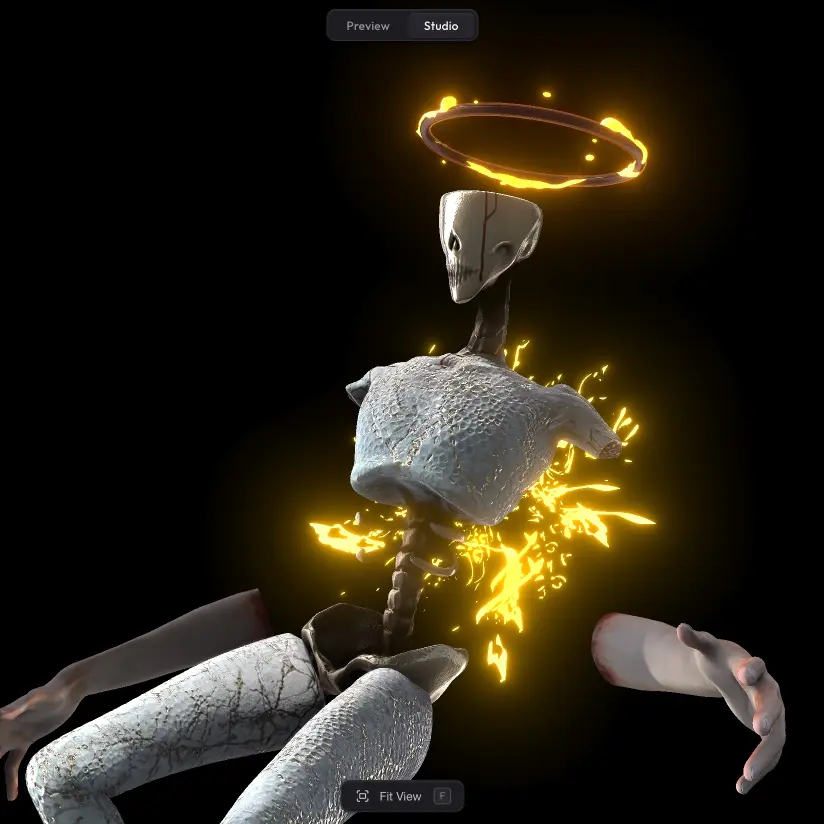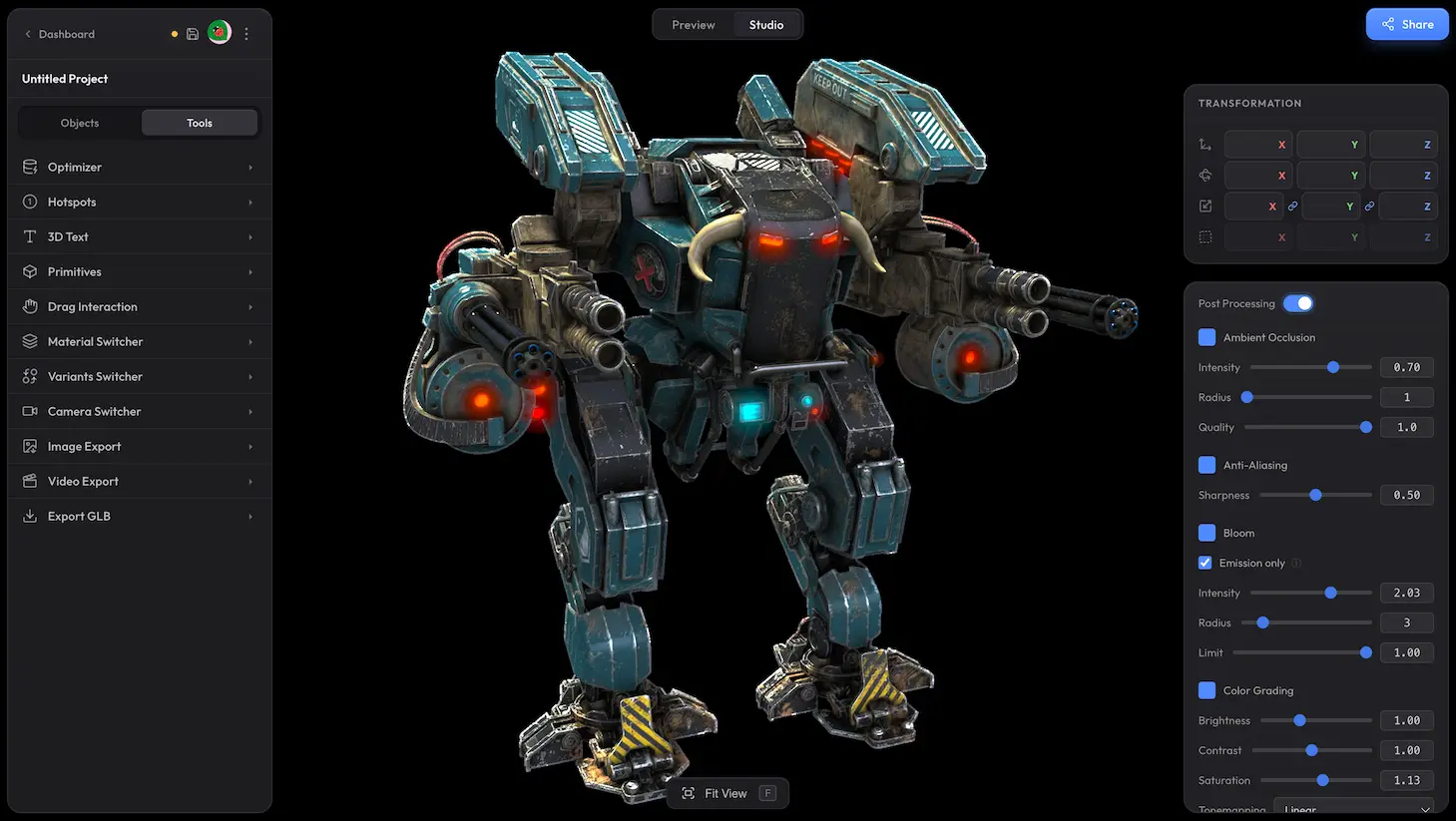
In Trice, models look great even with no post-processing turned on. But if you want to add ambient occlusion shadows, fix aliasing issues, light up emissive materials with bloom, or fine-tune the colours of the scene — that is what post-processing is for. The master toggle at the top of the panel switches the whole stack on or off, and individual effects layer on top. Each effect has its own dedicated docs page below.
Effects in the panel #
- Ambient Occlusion — soft shadows in crevices and where surfaces meet, gives the model contact and depth
- Anti-Aliasing — fixes jagged edges and visual artefacts like shimmer or flickering on fine geometry
- Bloom — soft glow on emissive materials and other bright areas
- Color Grading — adjusts the overall colour balance of the scene
- Color Enhance — boosts colour vibrancy
- Vignette — darkens the edges of the frame
- Fringing — chromatic aberration on edges, like a real camera lens
Run into any issues? #
Hitting an effect that does not render the way you expect, or missing a setting that should be there? Drop us a line at hello@trice3d.com or join our Discord and tell us what is going wrong or what you would like to see added.