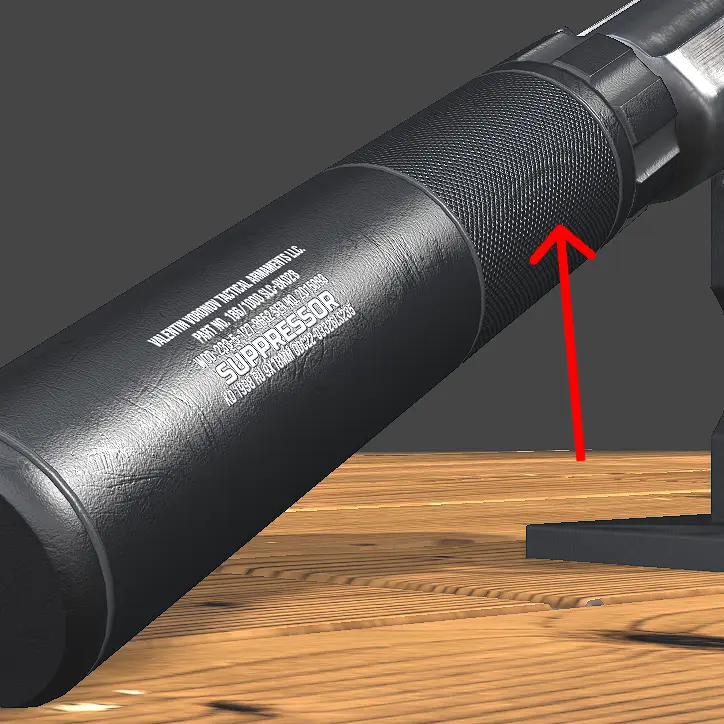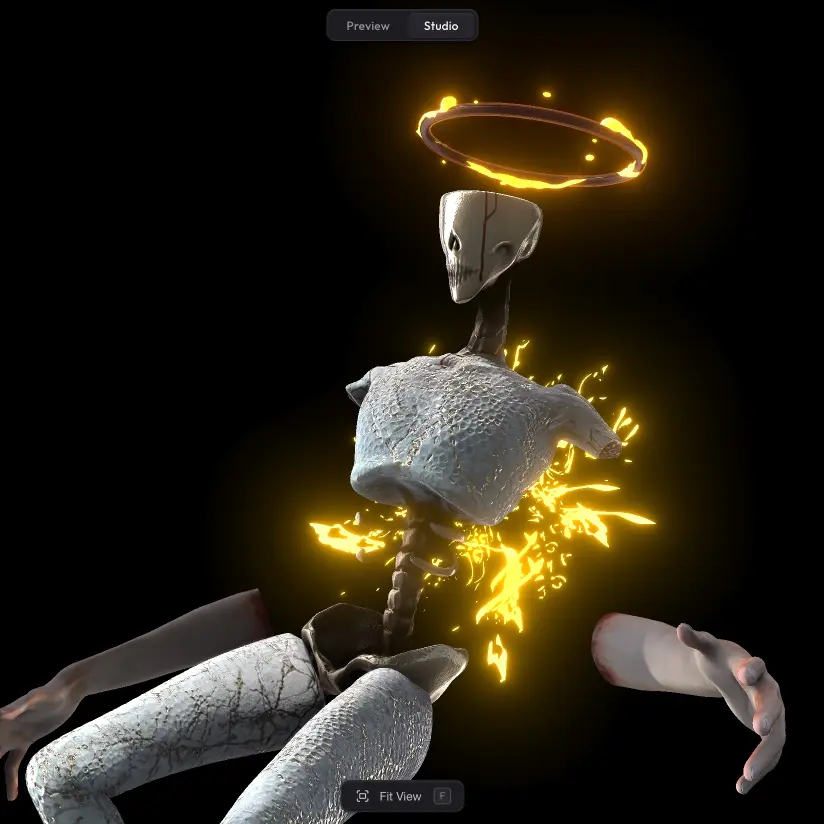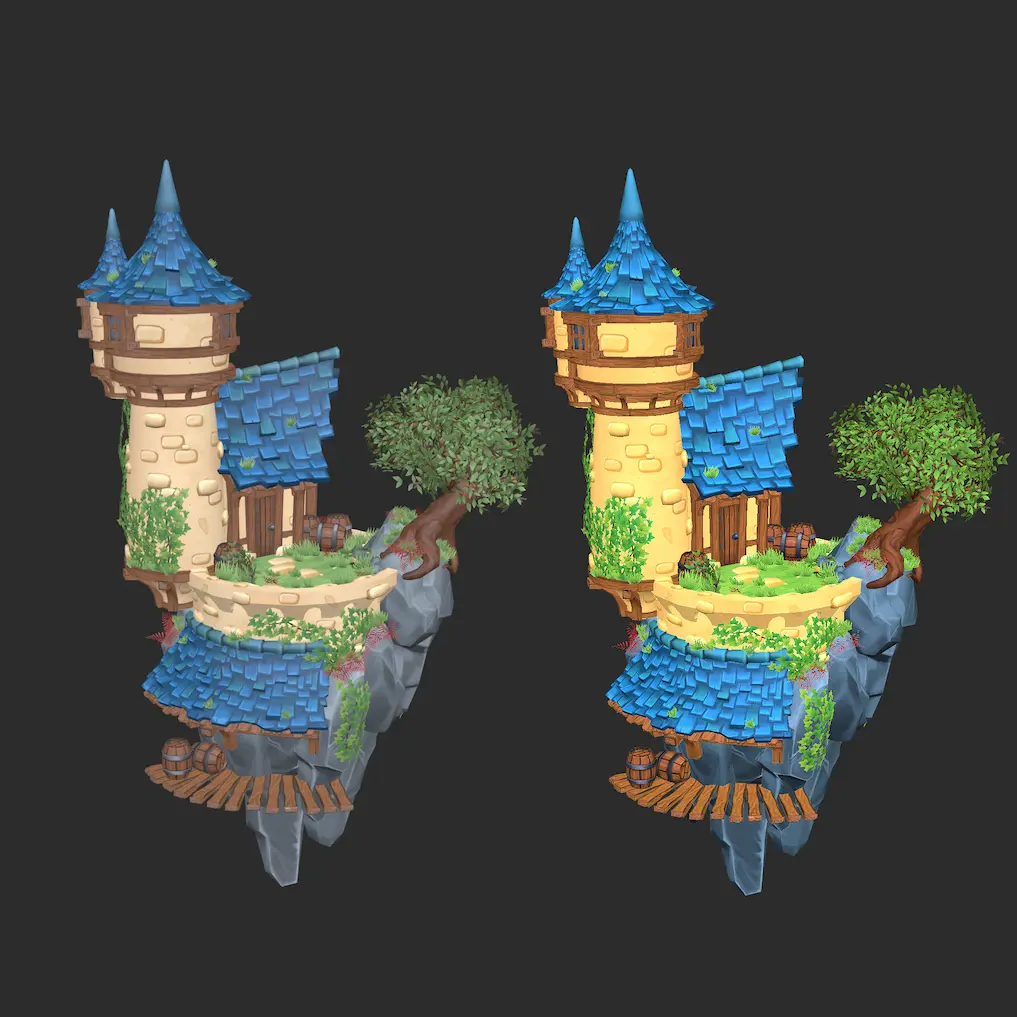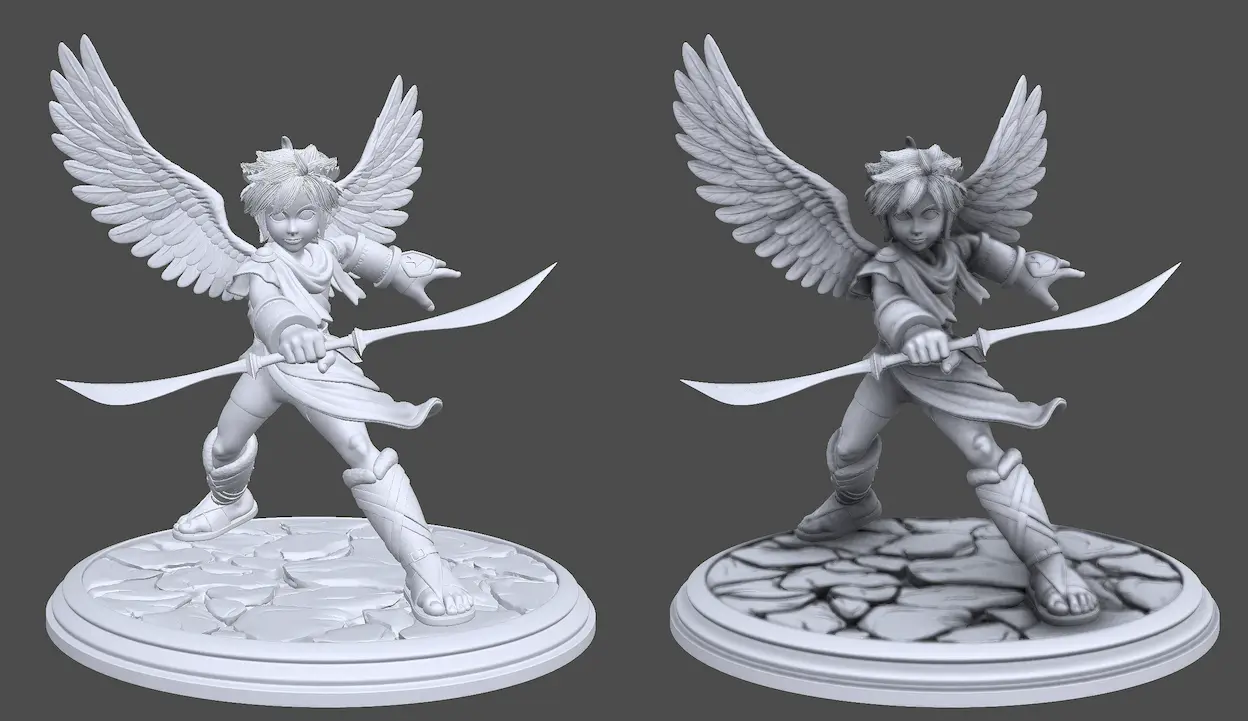
Without Ambient Occlusion, models can come out looking a little flat — corners, recesses, and small details blend together with the rest of the surface. Trice turns real-time AO shadows on with a single click: subtle shading appears in those tight spots, the model gains depth, details pop more, and the whole thing feels grounded in the scene instead of looking painted on.
Settings #
- Intensity — how dark the AO shadows are. Higher values give more dramatic darkening; lower values keep it subtle.
- Radius — how far each point looks for nearby surfaces. Smaller radius creates tight contact shadows, larger radius makes broader, softer shadows.
- Quality — how detailed the AO is. Lower quality is faster but may show some noise; higher quality is cleaner at the cost of more GPU work.
Bake AO into the model #
Real-time AO is a post-processing effect — it runs every frame and has a performance cost. When the camera moves very close to a model, the AO can also show some rendering artefacts. If either becomes a problem, you can bake AO directly into the model with our separate Trice AO Baker app: it pre-computes the shadows once, embeds them into the model, and you import the result into Trice. Baked AO costs nothing at runtime and looks identical at any camera distance.
Run into any issues? #
Hitting AO that does not render the way you expect, or missing a setting that should be there? Drop us a line at hello@trice3d.com or join our Discord and tell us what is going wrong or what you would like to see added.