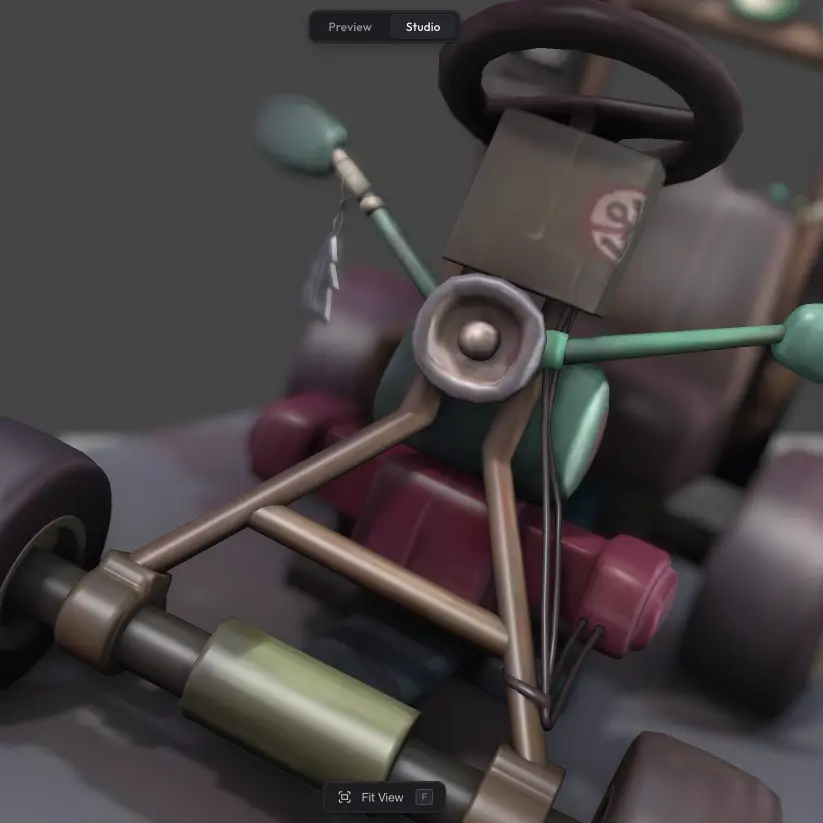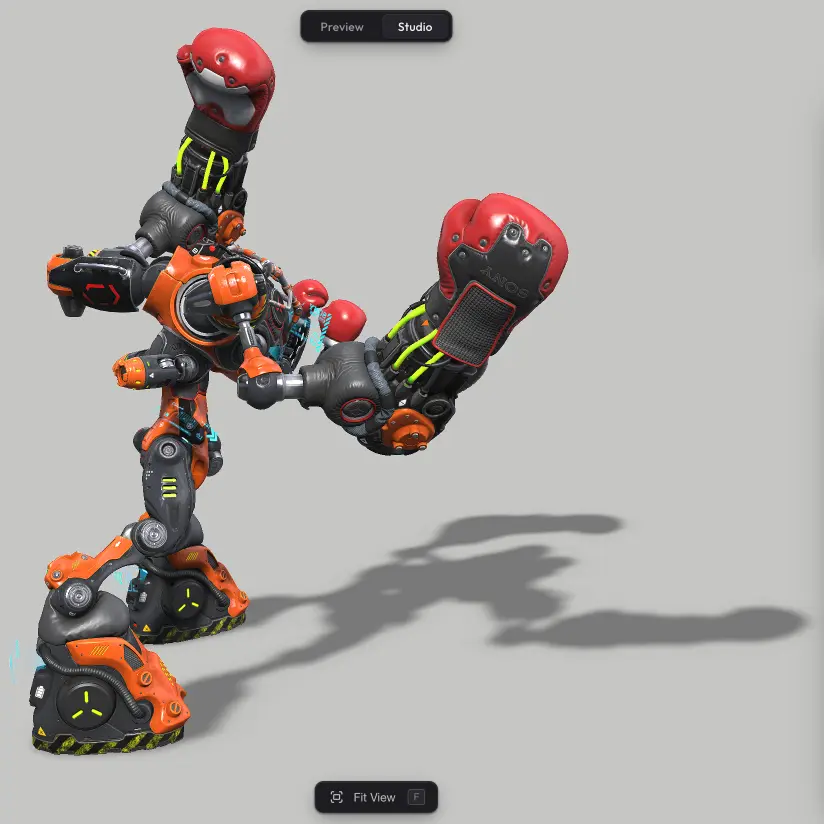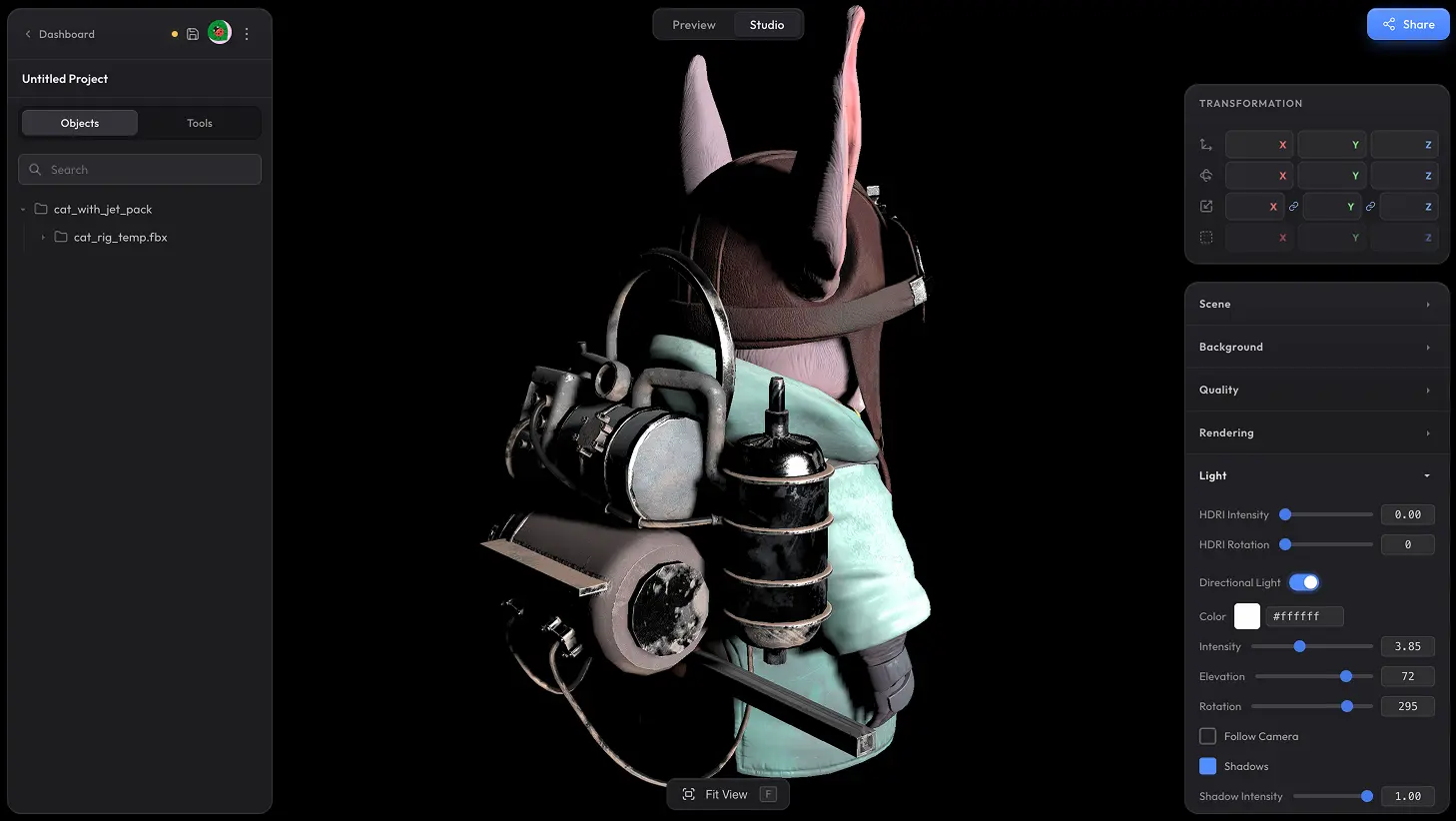
Your scene is lit by default by the HDR environment — realistic ambient lighting that looks great with no setup. If you want to fine-tune things, you can adjust how strong the HDR lighting is, or turn on a directional light for sharper highlights and shadows on top.
HDRI Intensity #
Controls how strongly the HDR environment lights your model. Lower values give a darker, moodier scene; higher values brighten everything up. To change which HDR is used, head over to the Background section.
Directional Light #
Optional sun-style light for adding crisper highlights and shadows on top of the ambient HDR. Turn it on with the Directional Light toggle — the rest of the controls appear below.
- Color — tint of the light. White for neutral, warm orange for sunset, cool blue for moonlight, and so on.
- Intensity — brightness of the light.
- Elevation — vertical angle. Low for long stretched shadows (sunrise / sunset), high overhead for short shadows (midday).
- Rotation — horizontal angle around the scene. Spin it to position the light from the side, behind, or in front of the model.
- Follow Camera — keep the light tied to the camera, so the model is always lit from the direction you are looking at.
- Shadows — cast shadows on the mesh itself (for shadows on the floor, use Shadow Catcher). Two extra controls appear when on: Shadow Intensity for how dark the shadows are, and Static Shadows to cache the shadow map for better performance (shadows still update automatically when the light or scene changes).
Need more control? #
Want multiple directional lights, point or spot lights, lighting presets, or anything else beyond what is here? Drop us a line at hello@trice3d.com or join our Discord and tell us what you would like to see added.