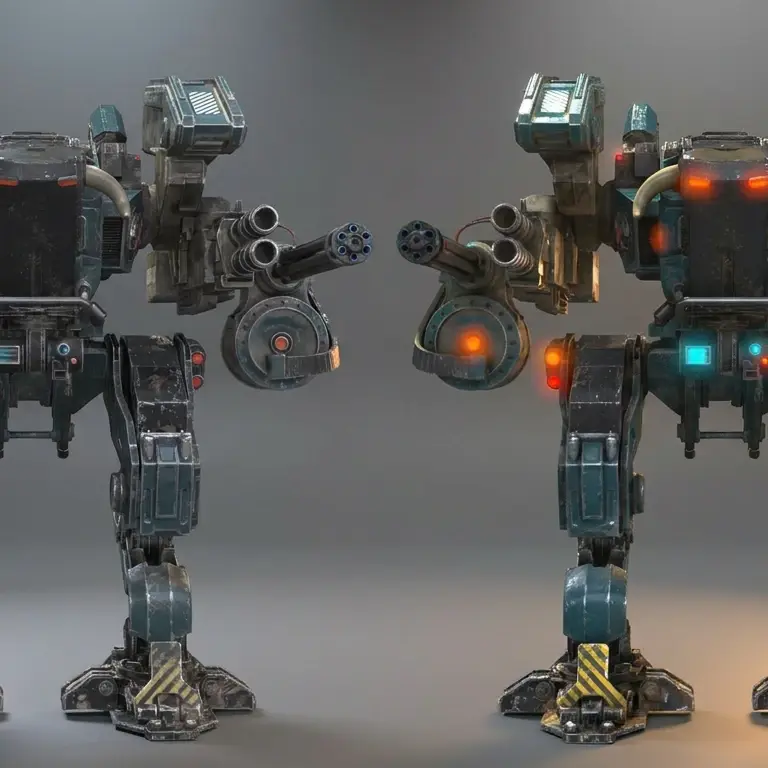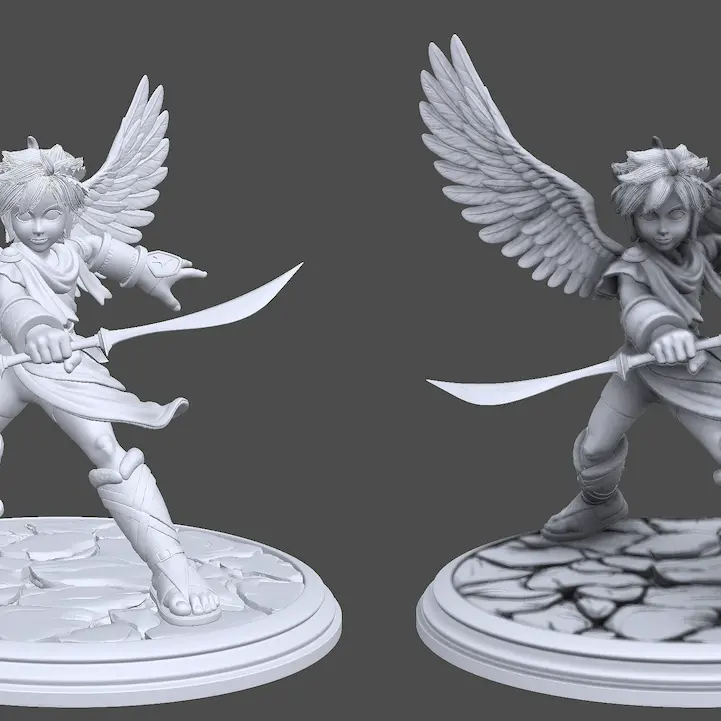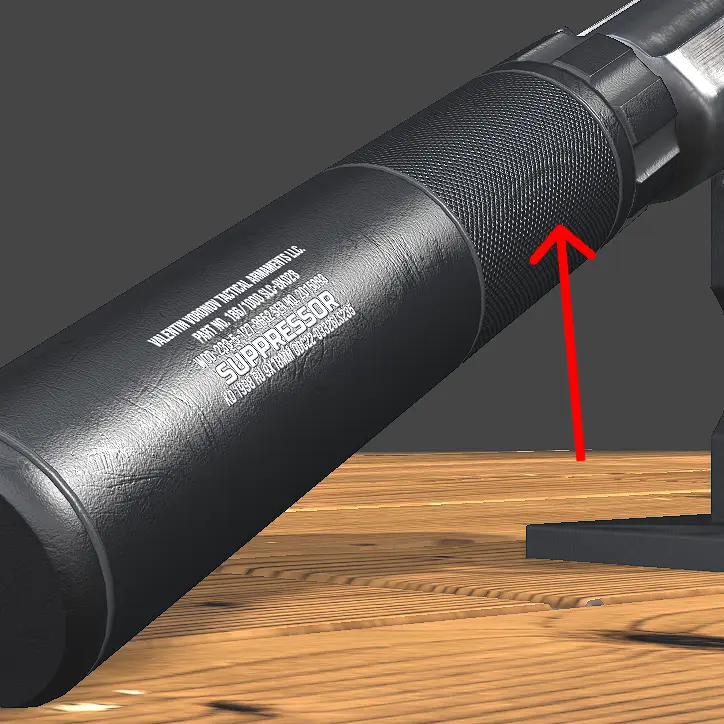
Quality Settings tunes how the scene is rendered, both in the editor and on published share URLs. Most of the time the defaults are exactly what you want, and even if you do have to lower the quality, the change is barely noticeable visually — at most, some post-processing effects come out a bit less crisp. You really only need these settings for very heavy scenes — files with lots of transparent textures, or many post-processing effects stacked on top of each other. Most of the time, no tweaking needed.
Settings #
- Render Quality — pixel scale of the render. Lower values render at smaller resolution and upscale, higher values give a sharper image at the cost of more GPU work.
- Adaptive Quality (Studio / Share) — when on, Trice auto-corrects render quality based on real-time FPS so the scene stays smooth. Set independently for the editor and for share URLs.
- WebGPU (Studio / Share) — pick the graphics pipeline. WebGPU is the newer, generally faster one. Most browsers support it, and Trice falls back to WebGL 2 automatically on the ones that don't. Set independently for Studio and share URLs.
How to tell if you need to lower quality #
If the scene feels smooth to you, you do not need to. If it feels sluggish, turn on Performance in the Scene section to see a live FPS counter. Keep in mind that FPS is measured on your specific device and varies with conditions — a low battery, for example, drops most laptops and phones into power-saving mode, which can pull performance down even on otherwise capable hardware.
Why Studio and Share are split #
Studio is where you build and set up the scene — you usually want maximum quality there. Share URLs are what end viewers see, often on weaker devices than the one you work on. Splitting the controls lets you keep the editing experience pristine while making sure the published scene runs smoothly wherever it lands.
Run into any issues? #
Hitting performance problems you cannot solve, or noticing something that does not render the way you expect? Drop us a line at hello@trice3d.com or join our Discord and tell us what you're seeing — we will help figure it out.