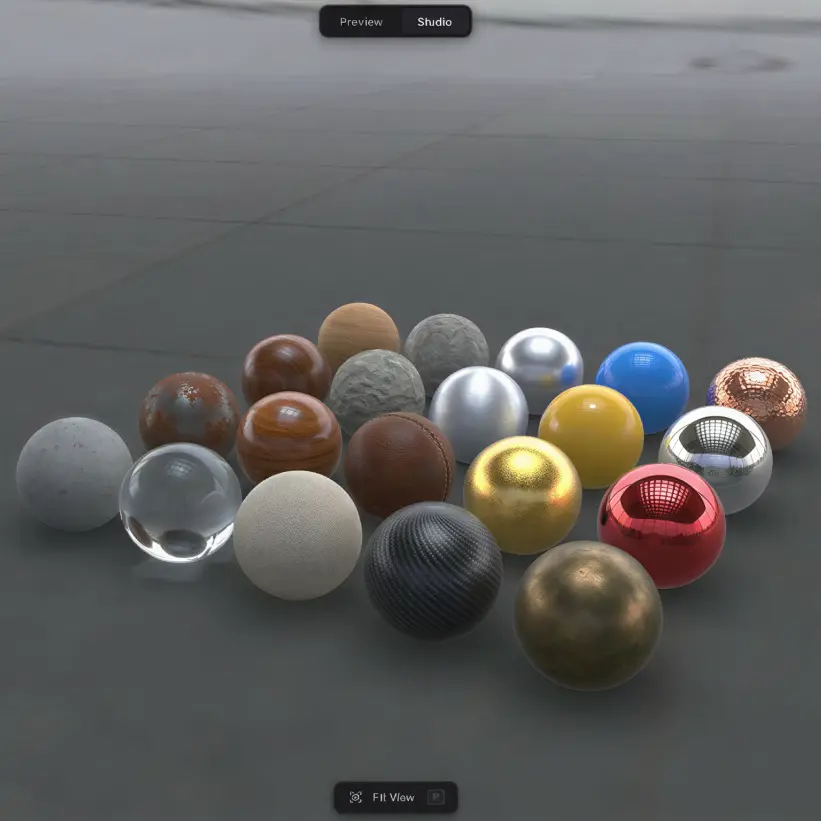
Trice ships with a serious renderer — depth of field, anti-aliasing, bloom, smooth motion all on by default. Your scene already looks like the finished thing in the browser. Video Export gives you a way to share that as MP4. Pick a turntable spin or a sweep through your camera transitions, and Trice renders the file in seconds. If your model has animations, they play through too.
How to render #
In Studio, switch to the Tools tab in the left panel and expand Video Export. Set the resolution, frame rate, and duration, then click Render Video. The MP4 (H.264) file downloads when the render finishes.
What gets recorded #
Trice picks one of three modes automatically based on your scene setup:
- Camera transitions — add cameras to your scene and set up smooth transitions between them with presets. The video plays through the sequence in order.
- Turntable — orbits the camera around the model at its configured speed.
- Static camera — just records your model. Useful when the model has its own animation.
Settings #
| Setting | Default | Description |
|---|---|---|
| Resolution | 1080p | 720p, 1080p, 2K, or 4K. Higher resolution takes longer to render and may not be supported by every browser at every frame rate. |
| Frame Rate | 30 | 24 fps for cinematic, 30 fps for social, 60 fps for smooth motion. |
| Duration | 5 s | Length of the video in seconds. Ignored when Seamless Loop is on. |
| Seamless Loop | off | Auto-fits the duration to exactly one full turntable rotation so the last frame matches the first. Only available when turntable is on and there is no camera sequence. |
Browser support #
Video Export uses the WebCodecs API for in-browser H.264 encoding. Works in Chrome, Edge, and Firefox 130+. Safari is not supported yet.
Free plan and Pro #
Video Export works on the free plan with caps: up to 720p, 30 fps, 18 seconds, and a small Trice watermark in the corner. Pro removes all of them — export up to 4K at 60 fps, any length, no watermark.
Need something custom? #
Need video behaviour beyond what is here? Drop us a line at hello@trice3d.com or join our Discord and tell us what you need.