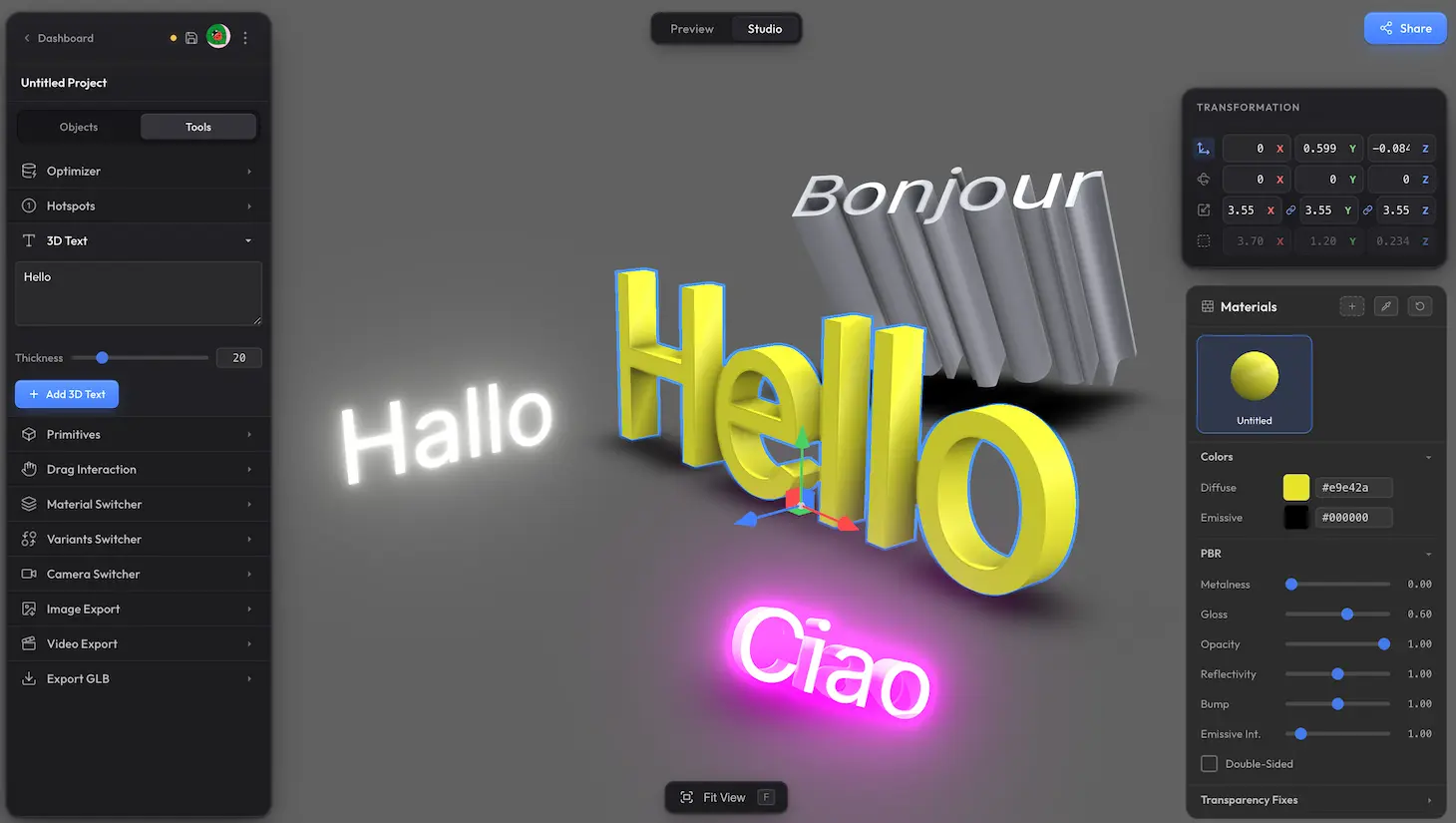
Trice has a built-in tool for adding 3D text to your scene. Type the text, set the thickness, drop it in. Edit it any time by selecting the text and changing the input or thickness — the geometry rebuilds in real time. The result is a regular 3D mesh, so you can move, rotate, scale, and style it like any other object in your scene.
Adding text #
Type into the text field, set the thickness, click Add 3D Text. The text appears in the centre of the scene, ready for you to position with the gizmo.
Editing existing text #
Select a 3D text on the scene and the panel shows its current text and thickness. Change either and the geometry rebuilds in real time.
It's just a mesh #
Once added, 3D text behaves like any other mesh in your scene. Move, rotate, and scale it with the gizmo. Recolour it or change its material through the Material Editor. It travels with the project — saves, share URLs, exports — exactly like any other object.
Missing something? #
Need font selection, bevel, letter spacing, colour controls right in the panel, or anything else beyond what is here? Drop us a line at hello@trice3d.com or join our Discord and tell us what you need.