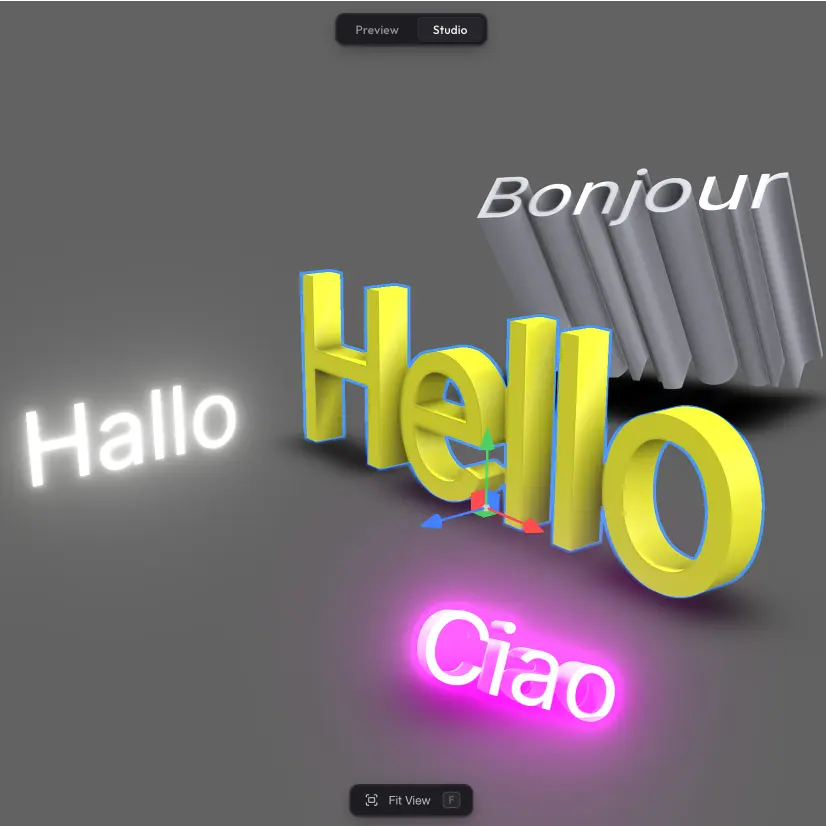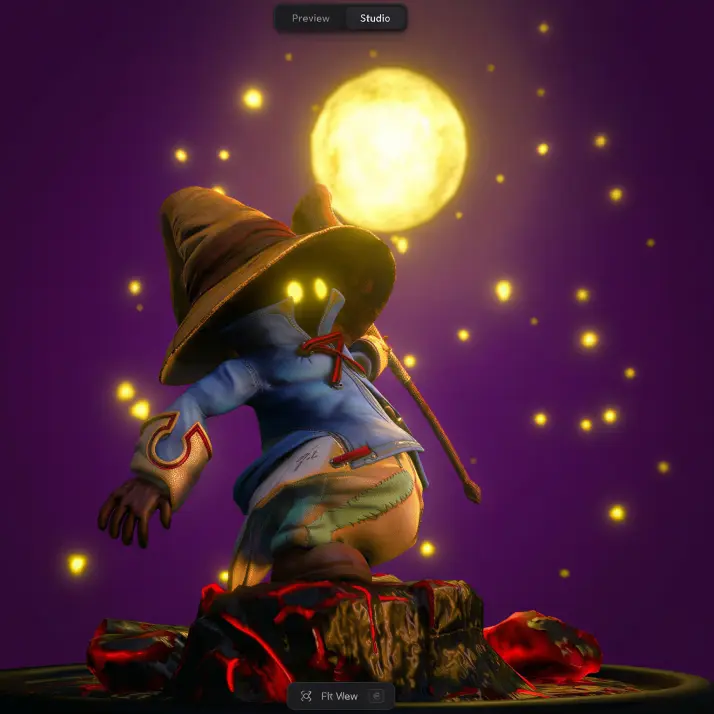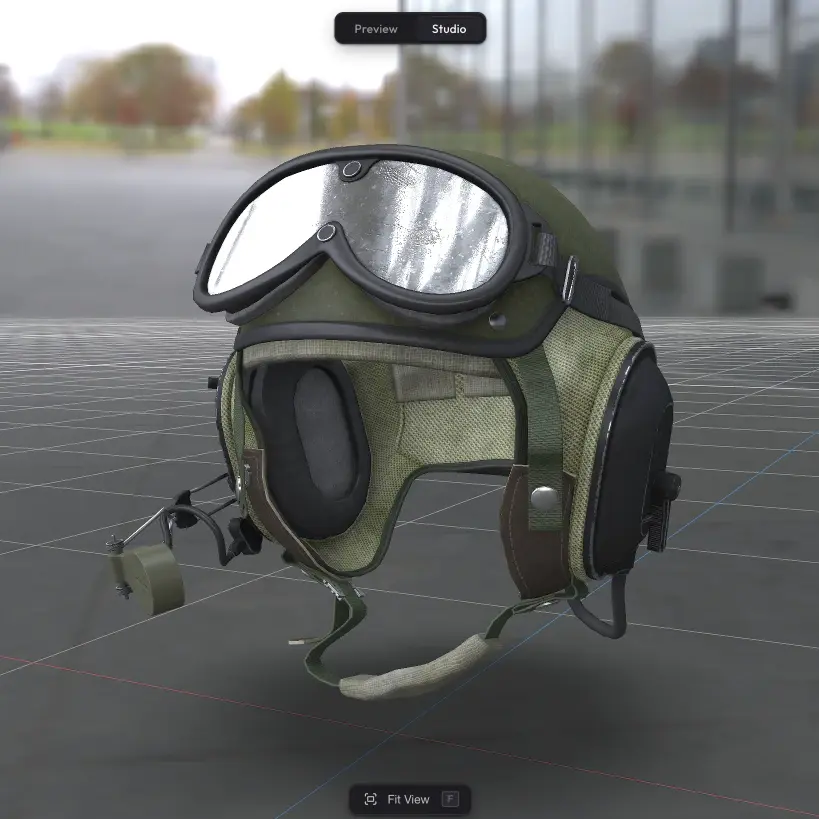
Trice gives you full control over the materials on your model. You can edit diffuse colour, emission, metalness, gloss, opacity, reflectivity, bump, and sheen. Fix what didn't come out right on import — or go further and create multiple variants of a material that viewers can switch between in the published scene. And thanks to Trice's top-tier web rendering, even simple materials look photorealistic by default. You don't have to fight with scene setup to make a material look good — out of the box, it already does.
Material list per mesh #
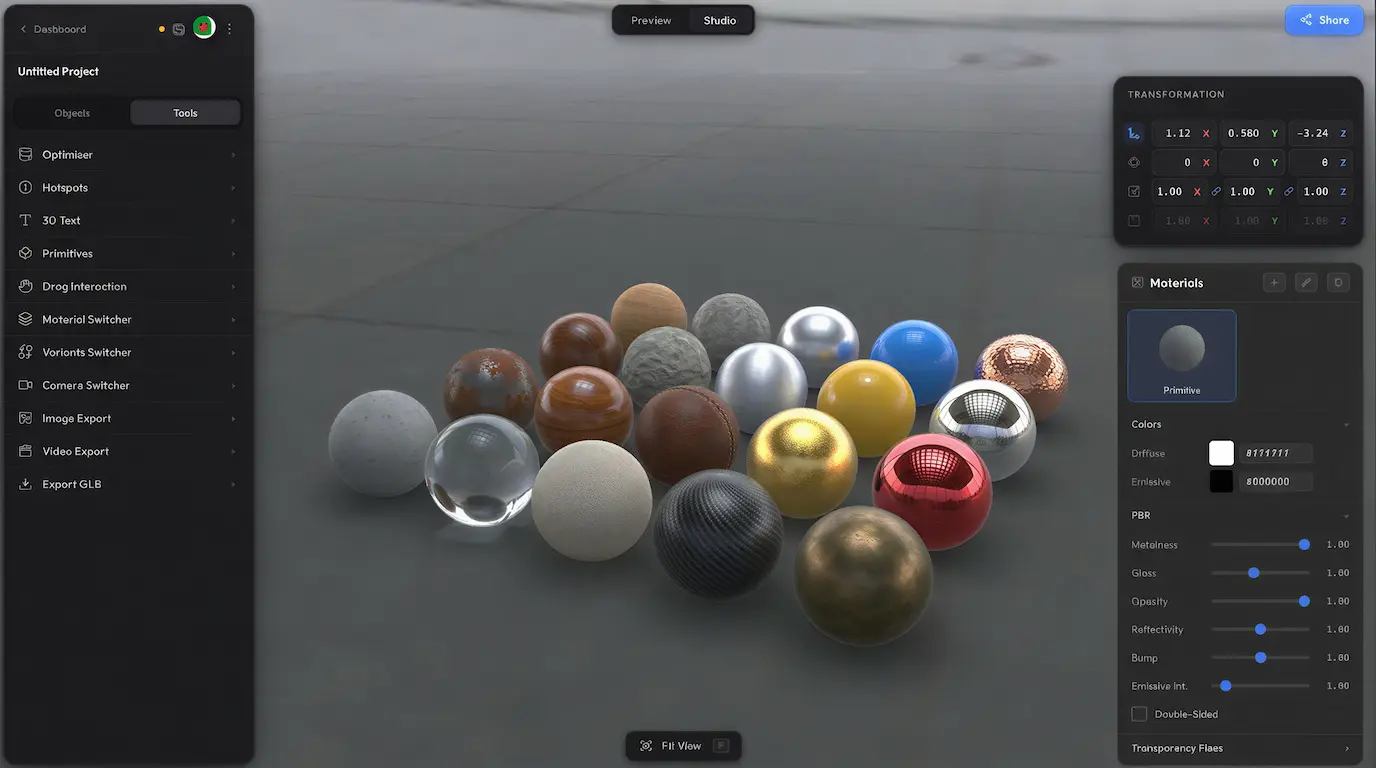
Select a mesh and the Materials panel shows every material slot on it, each with its own live PBR sphere thumbnail. Click one to open the editor.
What you can edit #
- Colors: diffuse and emissive (picker + hex)
- PBR sliders: metalness, gloss, opacity, reflectivity, bump, emissive intensity
- Alpha Fix and Alpha Fix 2 for fixing problems and artefacts with transparency
- Double-Sided toggle to render the material on both sides of the geometry
- Sheen for fabric, velvet, and other soft-highlight surfaces
- Textures: list of every map on the material with its resolution
Variants per mesh #
A single mesh can hold several material variants. Click + in the panel header to duplicate the current material — the new variant starts as a copy you can edit independently. In the published scene, viewers switch between variants via the Material Switcher, so one share URL can ship a model in three colours or three finishes.
Linked materials #
Several meshes can share the same material — Trice does this automatically when the imported GLB already shares a material across meshes, or when you copy a material with the eyedropper. Editing a linked material updates every mesh that uses it, which is useful when you want one colour change to roll out across the whole model. When you need a mesh to behave independently, click the broken-chain icon (shown in the panel header only when the current material is linked) to unlink it.
Eyedropper #
The eyedropper copies a material from one object onto another. Click the eyedropper icon, then click any object in the scene — its material lands on the current slot. The two materials stay linked from that point on, so further edits propagate.
Reset #
The reset button wipes the current material back to its default state — textures cleared, all sliders reset. Useful when you want to start a material from scratch.
Missing some settings or materials? #
Need additional material properties, more editing controls, the ability to import or replace textures, or anything else beyond what is here? Drop us a line at hello@trice3d.com or join our Discord and tell us what you need.