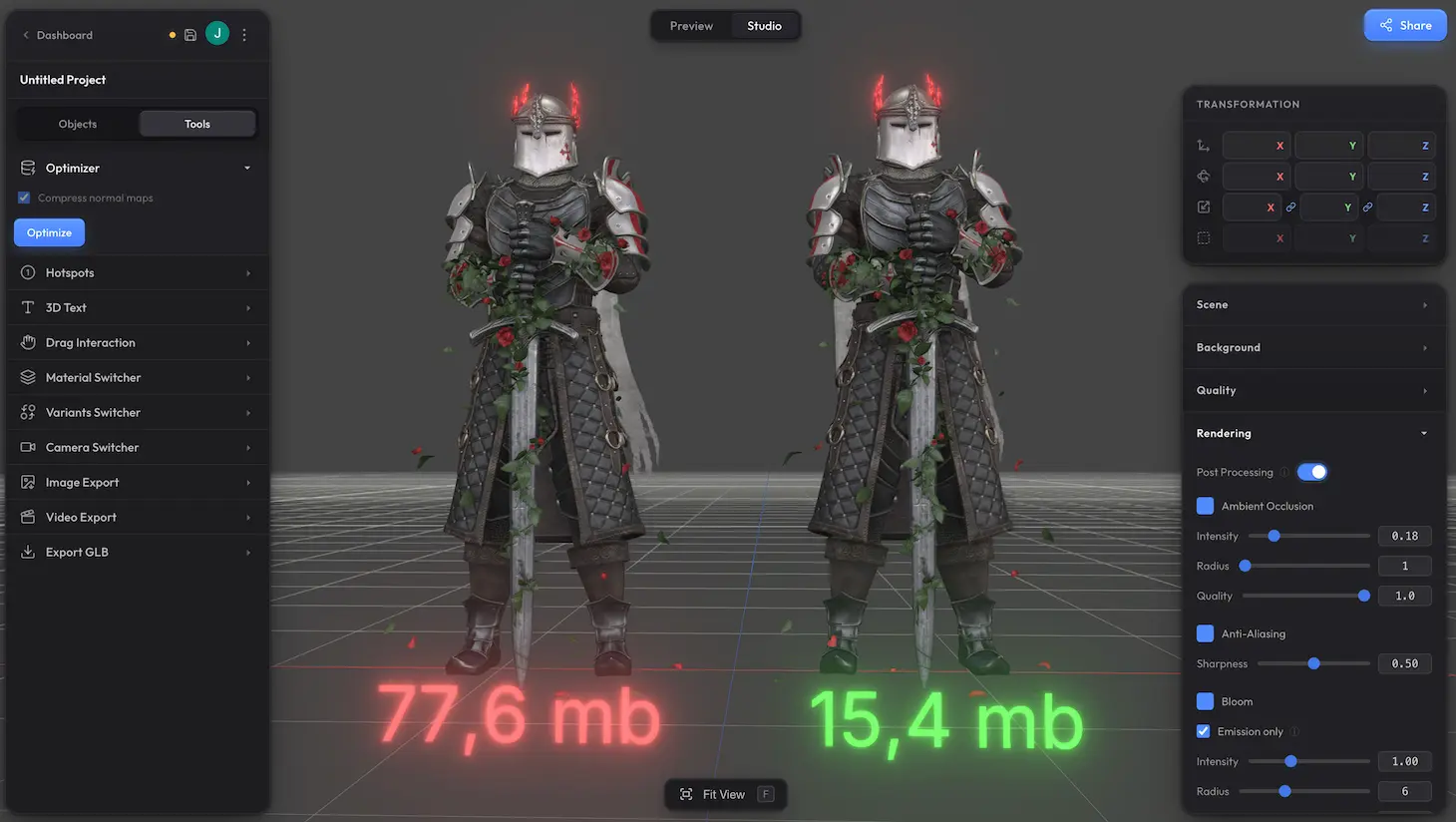
Reduces model file size by 60–90% with no visible quality loss. Every model is compressed automatically on import — run Optimizer to push it further before publishing or embedding.
How to open #
In Studio, switch to the Tools tab in the left panel. Expand Optimizer and click Optimize.
Settings #
| Setting | Default | Description |
|---|---|---|
| Compress normal maps | on | Apply texture compression to normal maps as well. Turn off if you notice lighting artifacts on detailed surfaces — normal maps are more sensitive to compression than colour textures. |
| GPU compression (KTX2) | on (Pro Optimize) | Available with Pro Optimize. The most advanced texture compression we offer — textures are stored in a format the GPU reads directly, cutting video memory dramatically (up to 5.6× in testing) alongside a smaller file. Ideal for texture-heavy scenes that need to stay smooth on mobile. |
Scene overview #
Clicking Optimize opens a popup with stats for the whole scene and per-model controls. Use it to see what is taking up file size or VRAM, and run optimization on individual models.
- Scene Overview — file size, mesh / material / texture / polygon counts
- Memory — total VRAM, split between geometry and textures
- Models — per-model row with file size, mesh, texture and polygon stats
Each model row has three actions:
- Merge Meshes — joins parts that share the same material. Scenes with thousands of objects often collapse to just a few — dramatically faster rendering, especially on mobile.
- Optimize — compresses meshes and textures right in your browser. Free, fast, no upload.
- Pro Optimize — sends the model to our servers for tighter compression. Smaller files at the same visual quality, with state-of-the-art GPU-native texture compression (KTX2) available for a dramatic cut to video memory — ideal for complex scenes on mobile.
Simplification #
Optimizer reduces size without touching topology — the polygon count stays the same. If you also want to drop polygon count (e.g. cut a 200K mesh down to 50K), use the standalone Simplifier app. It runs locally on your machine and gives you finer control over how aggressively the topology is reduced.
Progressive texture loading #
When a model is published or embedded, Trice can load textures progressively — a low-resolution preview appears instantly while full-resolution textures stream in the background. Cuts load time on slow connections from several seconds to under one. See Progressive Textures for details.
.webp)