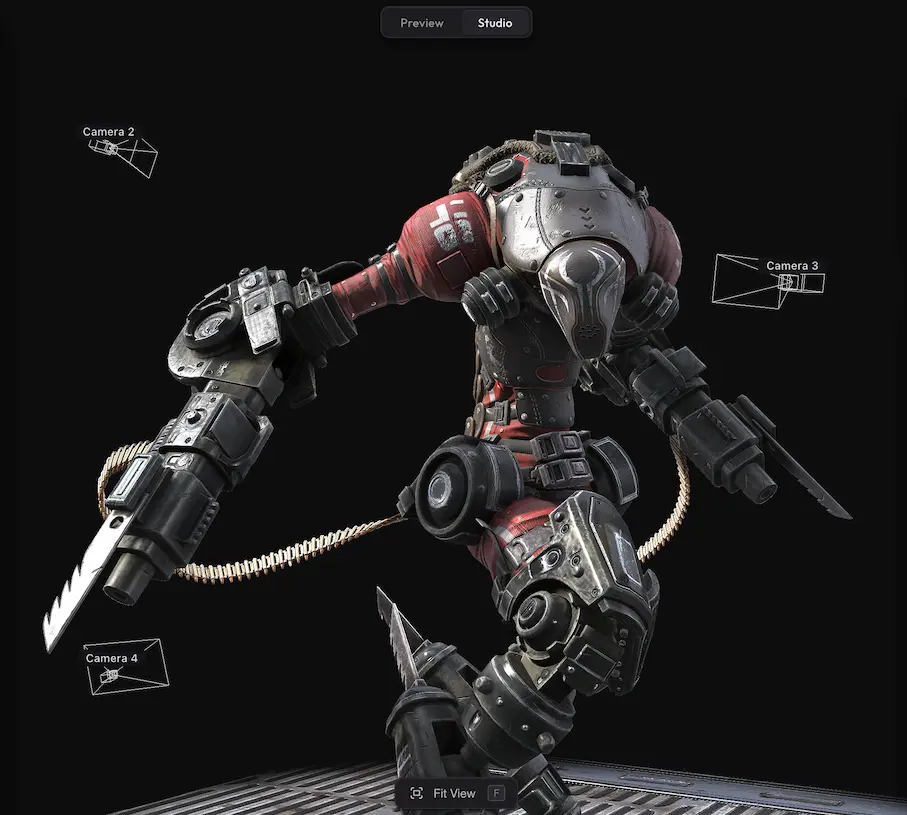
Variants Switcher lets you build groups of swappable objects — a chair with different leg styles, a product with optional accessories, or even completely different models shown one at a time. Viewers pick which one is visible from a panel in Preview.
How to add a variant group #
In Studio, switch to the Tools tab in the left panel and expand Variants Switcher. The panel starts with a single + Add Group button.
Click it and an empty group appears — give it a name and use the Add object… dropdown to choose which objects belong to that group. Add a few objects and only one of them will be visible at a time in Preview; viewers switch between them from the panel, with a smooth spring-like animation between states.
Marking child objects as selectable #
By default, the Add object… dropdown only lists top-level (parent) groups from the hierarchy. To make a specific child mesh selectable, right-click it in the Objects panel and pick Mark as Variant.
Marked objects show a small purple dot next to their name in the hierarchy. Right-click a marked object again to unmark it.
Need something custom? #
Need different swatch styles, multi-group sync, transitions between variants, or integration with your own UI? Drop us a line at hello@trice3d.com or join our Discord and tell us what you need.