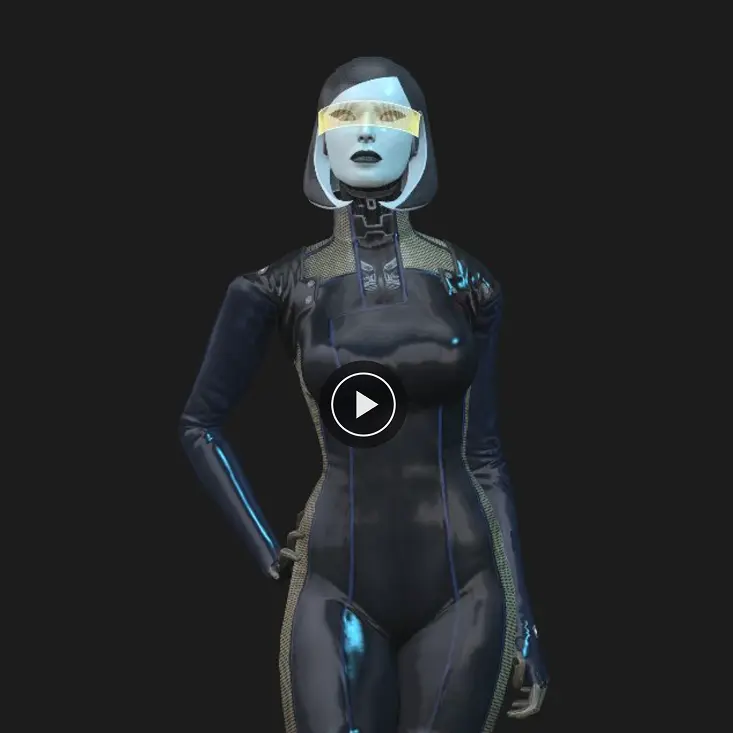
If your imported model has animations, they play automatically. When you select the model, a small playback panel appears with controls for pausing, stopping, picking a clip, scrubbing the timeline, and changing speed. The same panel also shows up on the published share URL so visitors can control playback themselves.
Controls in the panel #
- Play / Pause — toggle playback.
- Stop — return to the start of the clip.
- Clip dropdown — pick which animation to play if the model has more than one.
- Timeline scrubber — drag to jump to any moment, with the current time and clip length shown next to it.
- Speed — switch between 0.25×, 0.5×, 1×, 1.5×, and 2× playback.
Supported animation types and formats #
Trice supports the standard 3D animation types: transform animation (objects moving, rotating, scaling), skeletal animation (rigged characters with bones), and morph target animation (blend shapes / shape keys). Supported file formats with animation are GLB, glTF, FBX, and DAE. If your animation does not import the way it should, drop us a line at hello@trice3d.com or reach out on Discord and we will help figure out what is going wrong.
Hiding the panel from viewers #
In Viewer Features, the Animation Player checkbox controls whether the panel shows up on the published share URL. It is on by default. Uncheck it if you want the animation to play without giving viewers any controls.
Need something custom? #
Need to chain clips, crossfade between them, trigger animations from your own page, or anything else beyond what is here? Drop us a line at hello@trice3d.com or join our Discord and tell us what you would like to see added.