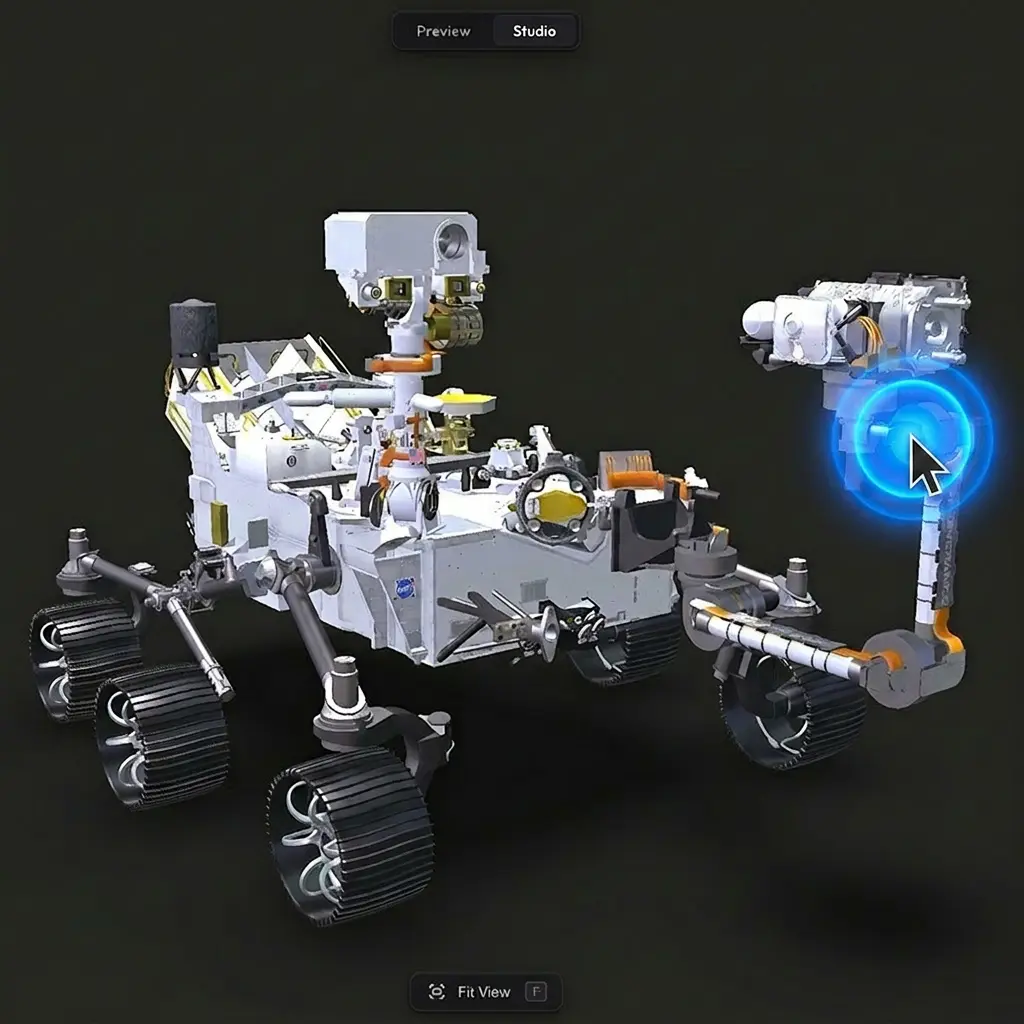
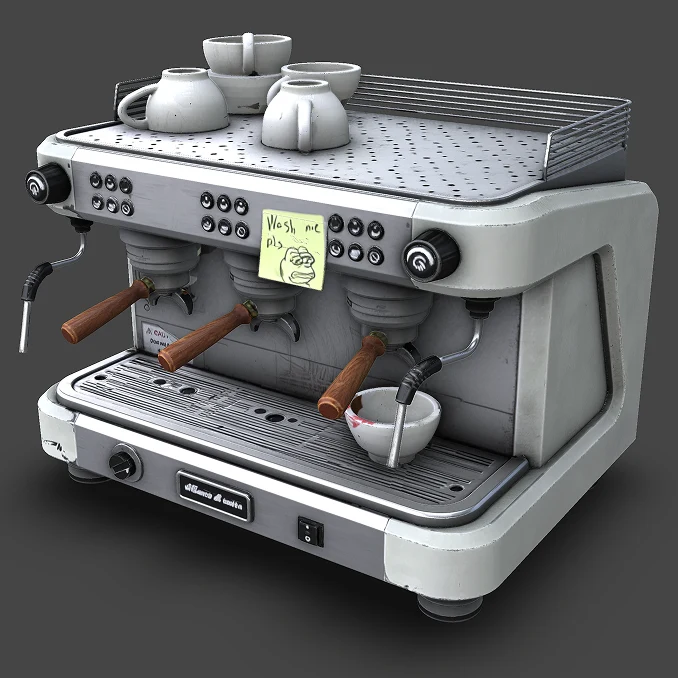
Fly Mode lets viewers fly through your scene like a drone — WASD to move, mouse to look around, Shift to speed up. It is the right choice when you want the audience to feel like they are inside the scene rather than orbiting around it from outside, especially for exploring architectural scenes and large environments.
Controls #
- W / A / S / D — move forward, left, back, and right.
- Arrow keys — alternative for movement.
- Mouse — drag to look around.
- Shift — hold to move faster.
- Ctrl — hold to move slower.
- Q / E — descend and ascend.
Where the toggle lives #
On desktop, Fly Mode is on by default — it sits alongside orbit controls without getting in the way, so you can leave it on for most scenes. The toggle to switch it off (or back on) lives in Viewer Features under Fly Mode (WASD).
On mobile #
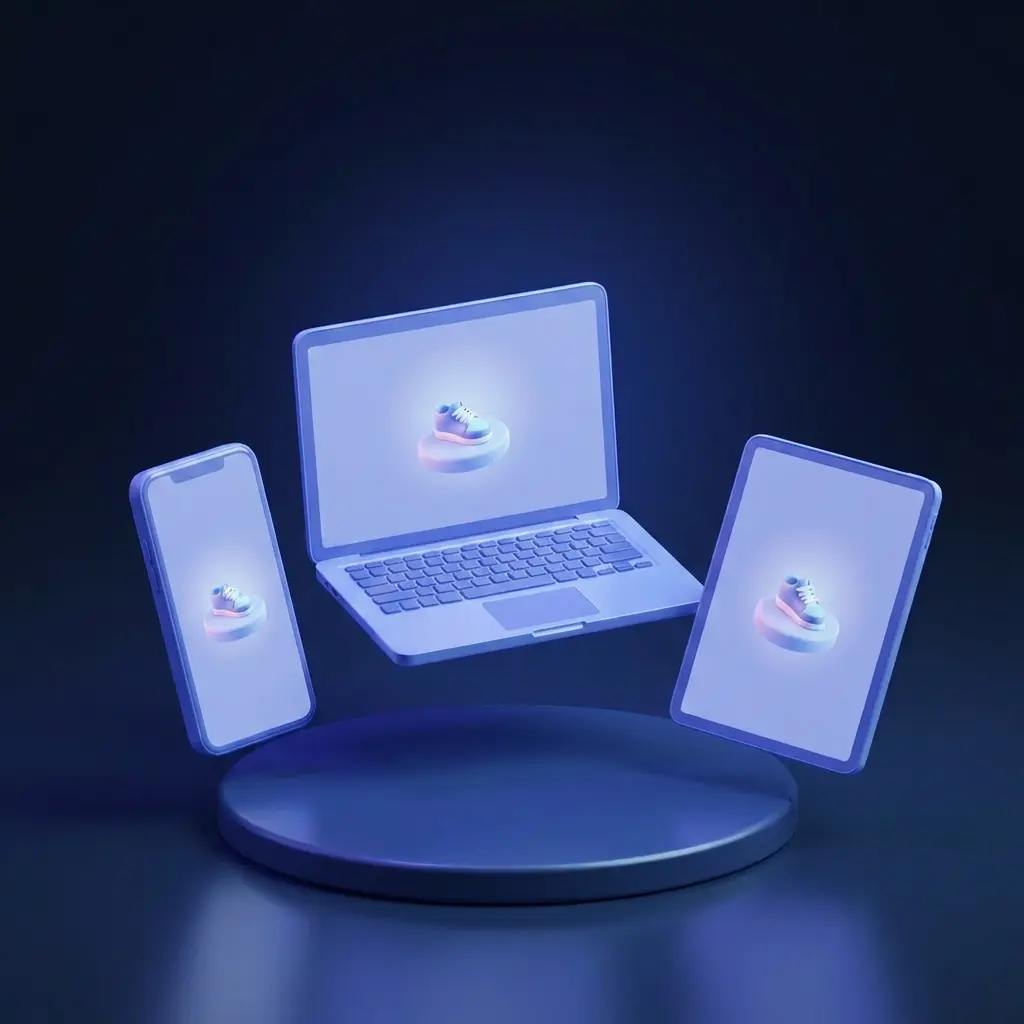
Fly Mode is also available on phones and tablets, with touch-based controls instead of WASD. Turn Fly Mode on Mobile on in Viewer Features and a drone icon appears in the viewer for visitors on phones and tablets. Viewers tap it to switch into fly mode, then steer with two fingers: the left finger moves forward and back, the right finger controls the direction of view and movement. A double-tap anywhere on the scene switches back to the orbit camera.
Need something custom? #
Need configurable movement speed, custom key bindings, collision detection against the geometry, or anything else beyond what is here? Drop us a line at hello@trice3d.com or join our Discord and tell us what you would like to see added.