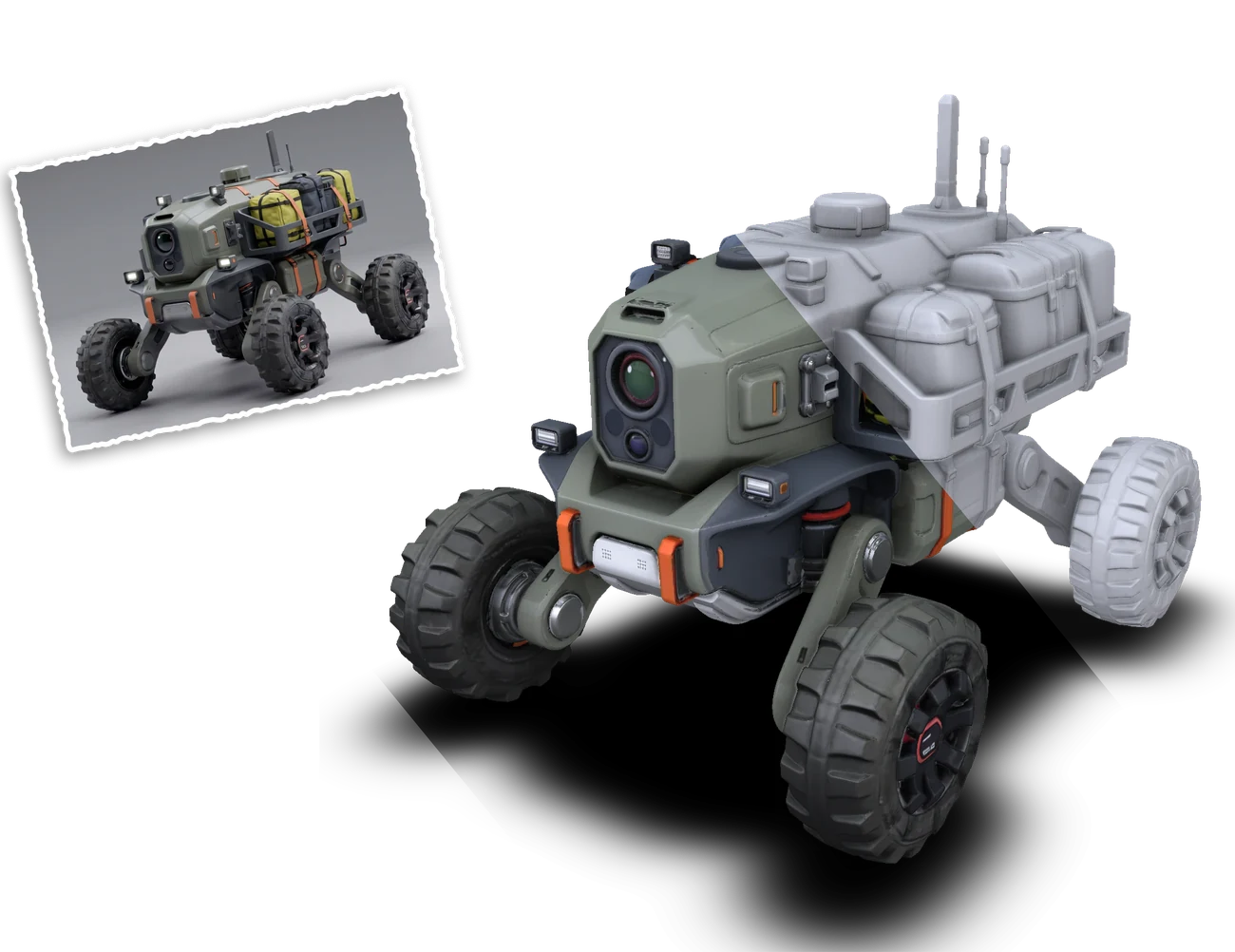
Trice is one of the best tools out there for AI 3D generation. Beyond how good the results look, it is genuinely convenient to use: a simple, clear UI paired with one of the best viewers in its class. And unlike most generation tools, you can generate and place as many models as you want in the same scene.
How to start #
In Studio, switch to the Tools tab in the left panel and expand AI Generate.
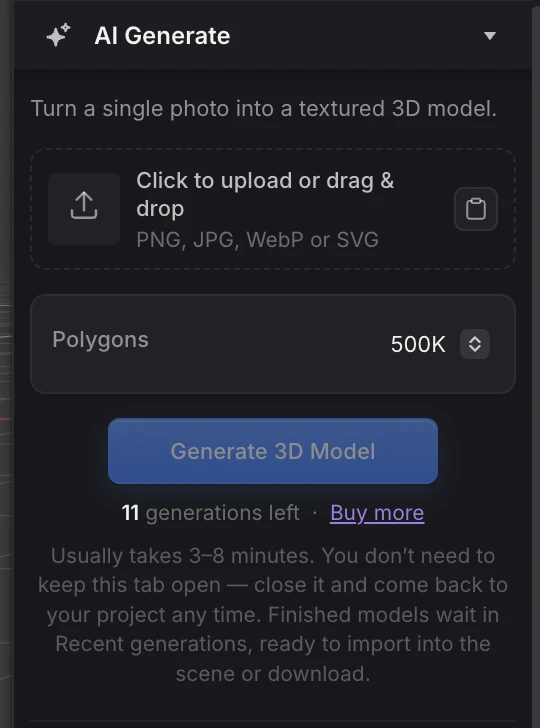
To generate anything, you first need to buy some generations. It is pay-as-you-go, with no subscription required, and your balance plus a Buy more link sit right below the Generate button.
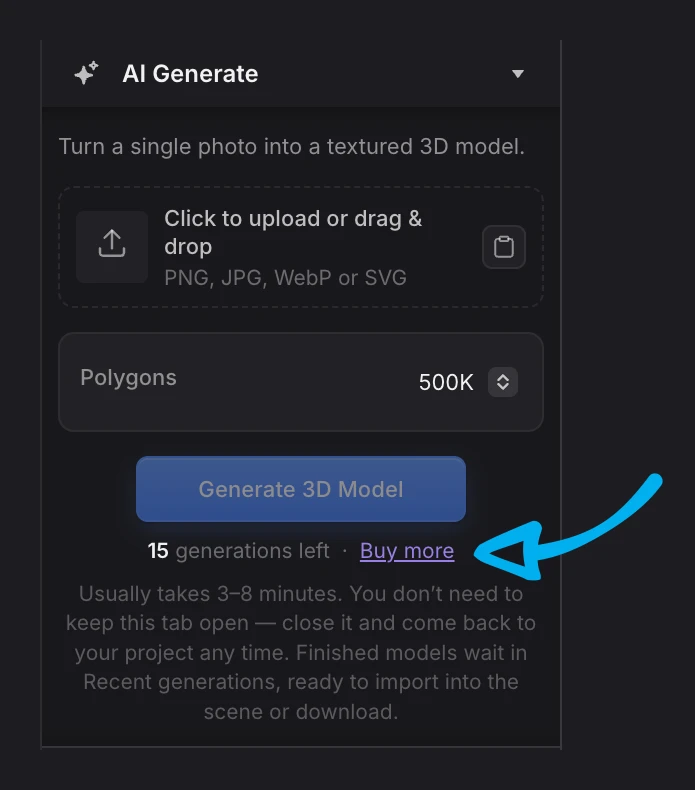
Add your reference image: drag it in, paste from your clipboard, or browse for a file the usual way. JPG, PNG, WebP and SVG all work.
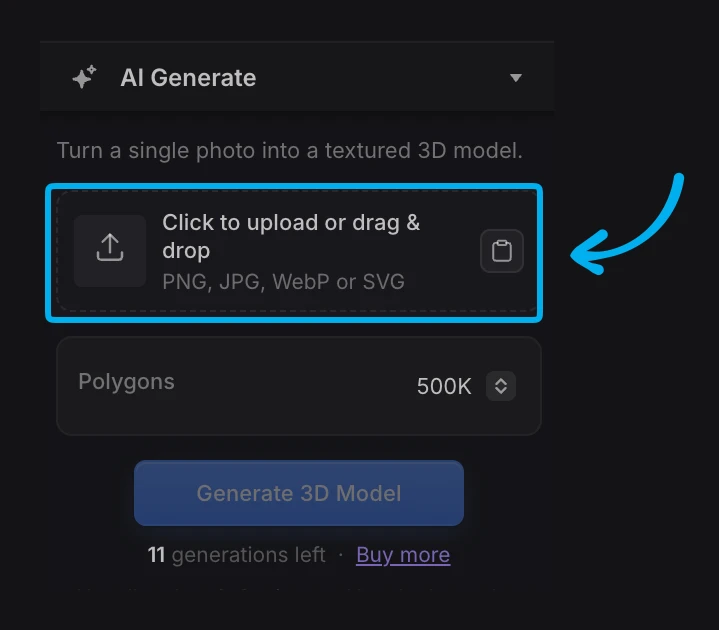
Choose the polygon count before generating: 100K, 500K or 1M. The price is the same either way.

While it runs #
Generation usually takes 3–8 minutes and happens on our servers, so closing the tab does not stop it. Keep editing this scene, work on another model, or open a different project entirely — the result waits for you under Recent generations when you come back, one click from your scene.
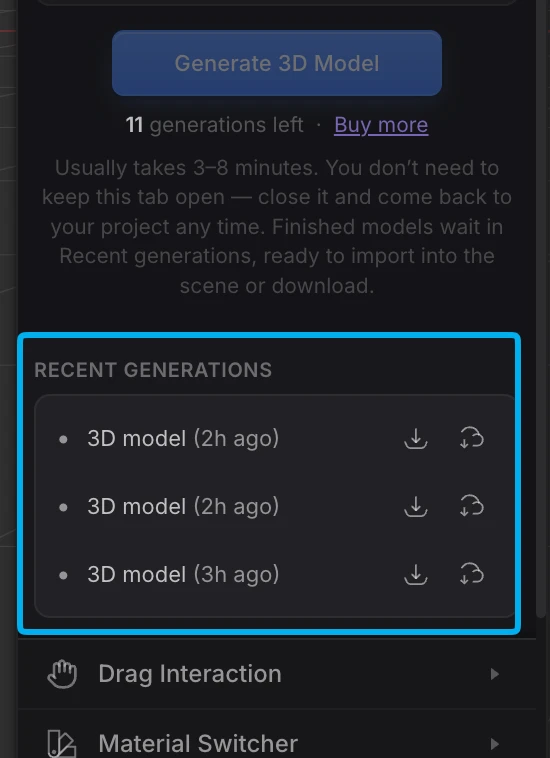
Recent generations #
Every finished model also collects here for a while, whether or not you kept the tab open, so nothing gets lost if you closed it or opened something else in the meantime. This list is not tied to any one project either: open any project, or start a new one, and the same recent generations are right there waiting for you.
Each row has two actions:
- Download — saves the original GLB file straight to your computer.
- Import to scene — brings the model into your current project, ready to light and edit like anything else.
Getting a good result #
Results are best from a single subject on a clean background, shot or rendered from a three-quarter angle, with the whole object visible.
- Avoid heavy shadows across the silhouette
- Avoid reflections that hide the shape
- Avoid images where the object is cropped
- Avoid blown-out highlights that wash out shape or texture
Most of these issues are easy to fix beforehand with any AI editing tool.
See it in action #
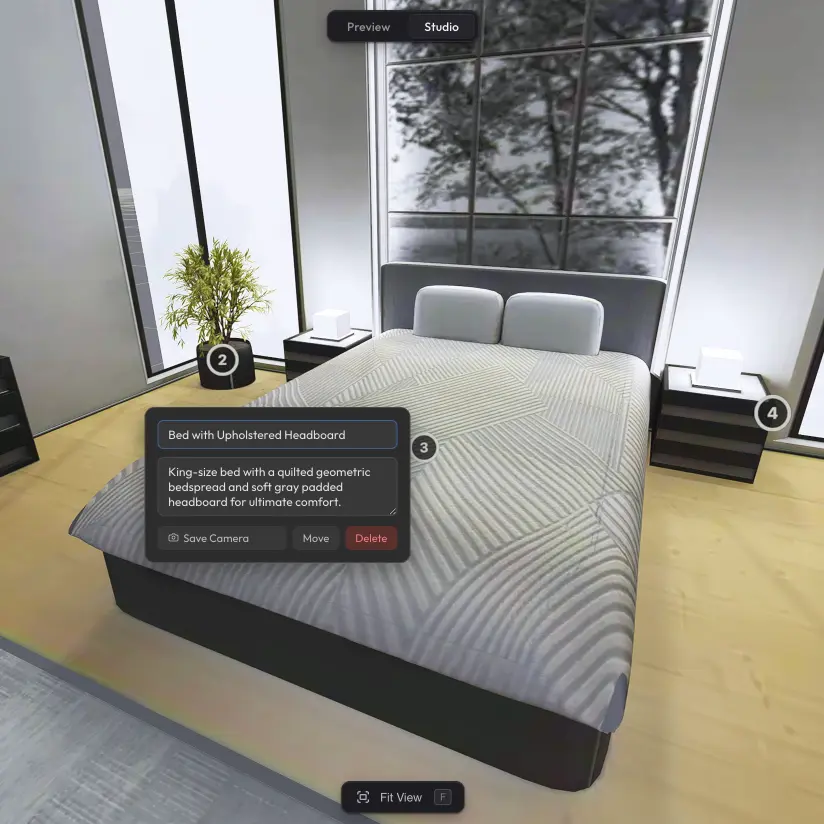
This scene was generated from the same photo shown at the top of this page.
Learn more #
For more examples and answers to common questions, see the Image to 3D page.
.webp)